Lake of Lumière
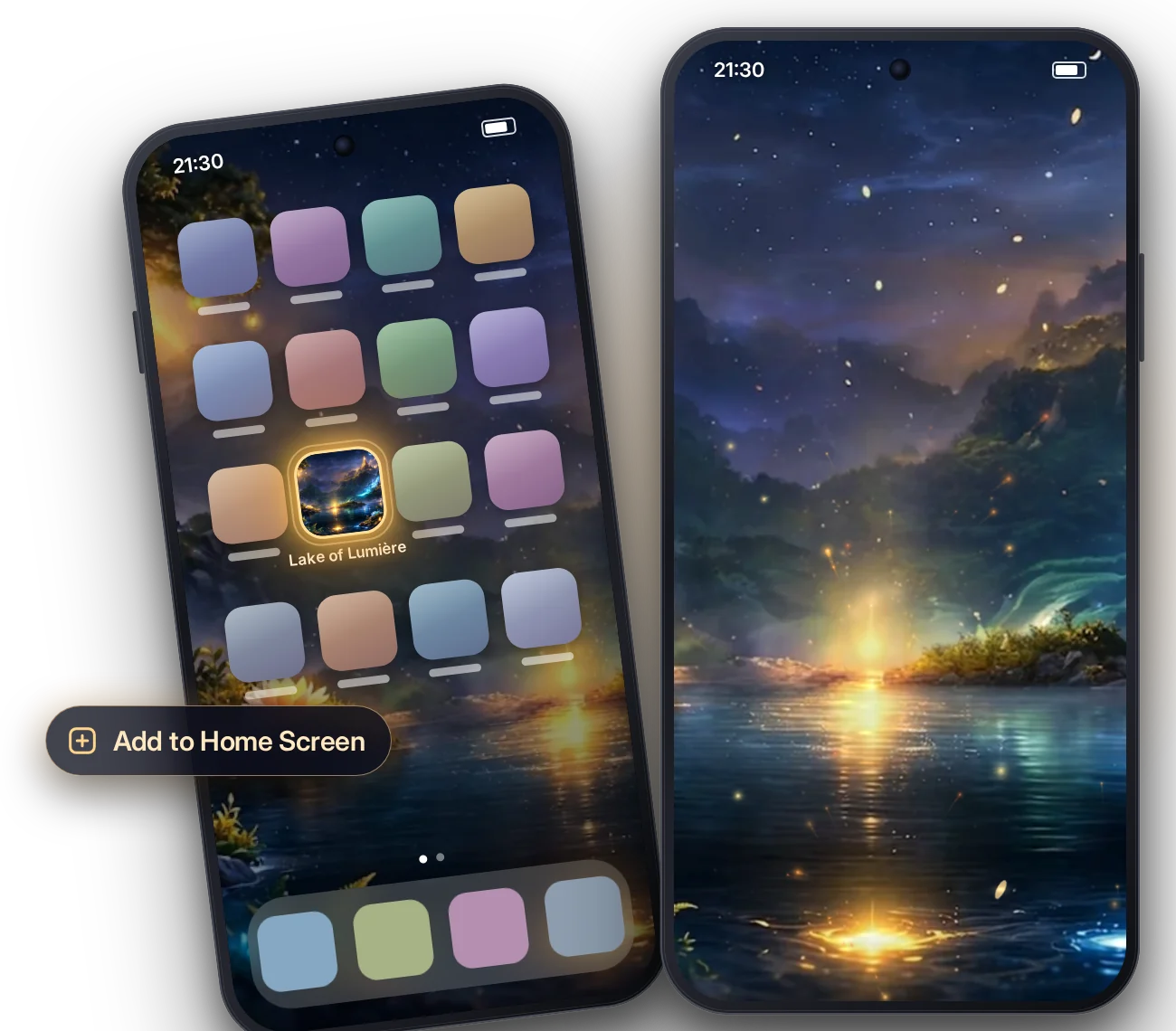
Put the lake on your Home Screen
Open the Lake of Lumière like an app: full screen, with one tap. It takes about 30 seconds. No app store, and it’s free.
- Full screen, like an app
- One tap to open
- Free · about 30 seconds
On a computer? Open this page on your phone to follow along.
iPhone · Safari
Step 1: Open the lake in Safari, then tap the ••• button
It’s at the bottom right, next to the address.
Do you see a Share button (a square with an arrow pointing up) in the address bar or at the bottom of the screen? Tap it, then go straight to step 3. On iPad, Share is at the top right.
Step 2: Tap Share
Step 3: Tap View More
Only if you don’t see Add to Home Screen yet.
Step 4: Tap Add to Home Screen
You may need to scroll down a little.
Step 5: Leave Open as Web App on, then tap Add
This is what makes the lake open full screen, like an app.
Step 6: That’s it!
The lake is on your Home Screen. Tap it to open it full screen.

Android · Chrome
Step 1: Open the lake in Chrome, then tap the ⋮ button
It’s at the top right, next to the address.
Step 2: Tap Install app
On some phones it says Install and create shortcut, or Add to Home screen.
Using another browser? Look for its menu, then Add to Home screen or Install.
Step 3: Tap Install
Or Add, depending on your phone.
Step 4: That’s it!
The lake is on your Home Screen. Tap it to open it full screen.
Once you’re in
Pinch to zoom, and drag with two fingers to look around. Tap the small round button at the top right to go back to the full view.